Your campaign is ready. Your list is clean. Then Meta rejects the template — or leaves it Pending for days while your launch window closes.
Template approval is not random, but it is strict. Meta reviews category fit, clarity, and policy risk. Teams that treat templates like casual SMS copy get rejected; teams that write like regulated product copy get approved faster.
This guide covers how WhatsApp templates work, why submissions fail, and how to create, submit, and monitor them in Pyngdesk.
What a WhatsApp message template is
Outside the 24-hour customer care window (after a user messages you), you generally cannot send free-form promotional text. You send a pre-approved message template with a fixed structure:
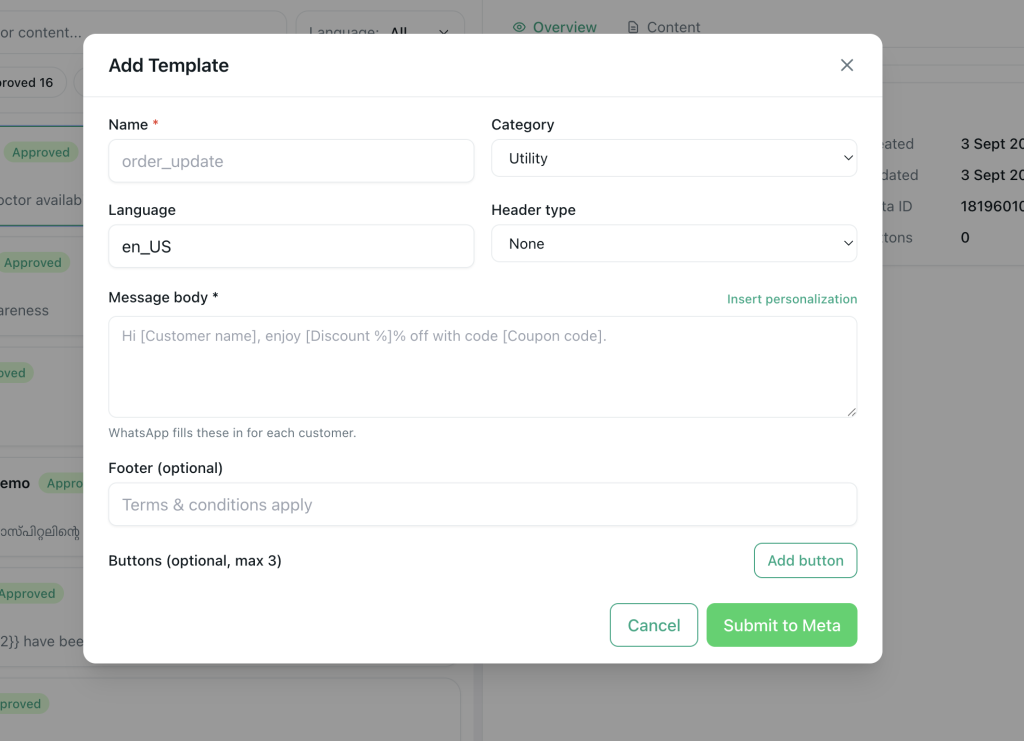
- Name (internal identifier)
- Category — Marketing, Utility, or Authentication
- Language
- Header (optional text, image, video, or document)
- Body (with variables like
{{1}}for the customer name) - Footer (optional)
- Buttons (optional quick replies or call-to-action)
Once Meta marks a template Approved, you can reuse it in chats and campaigns. In Pyngdesk, only approved templates appear in the campaign builder.
Pick the right category (most rejections start here)
| Category | Use when | Avoid when |
|---|---|---|
| Utility | Order updates, appointment reminders, account alerts the user expects | You are really pushing a sale |
| Marketing | Offers, launches, re-engagement, newsletters with consent | You label a promo as “utility” to sneak past review |
| Authentication | OTPs and verification codes | Anything that is not a login/verify flow |
Mis-categorisation is a top rejection reason. If the body says “20% off this weekend,” it is Marketing — full stop.
Write copy Meta (and customers) will trust
Do
- Identify your business clearly in the first line or via verified display name context
- State why the person is hearing from you
- Keep variables meaningful (
name,order_id,appointment_time) — not open-ended spam slots - Match the template language to your audience
- Use one clear call to action
Do not
- Use ALL CAPS, scare tactics, or “You have won” bait
- Stuff the body with URLs and tracking junk
- Promise things your business cannot deliver
- Request sensitive data casually in a marketing template
- Submit near-duplicates that look like spam variants
Example (Utility — good):
“Hi {{1}}, your order {{2}} from Acme Stores is out for delivery. Track status: {{3}}.”
Example (Marketing — good):
“Hi {{1}}, thanks for shopping with Acme. This week members get free shipping on orders above ₹999. Reply STOP to opt out of offers.”
Example (bad):
“URGENT!!! Claim your prize NOW {{1}} {{2}} {{3}} click http://bit.ly/x”
Media headers: help or hurt?
Image, video, or document headers can increase engagement — and rejection risk if assets look misleading.
Guidelines:
- Use sharp, on-brand product or service imagery
- Avoid clickbait faces, fake UI, or “WhatsApp Official” impersonation vibes
- Keep documents clearly labelled (invoice, brochure)
- Ensure the header matches the body promise
In Pyngdesk, attach media when creating the template, then submit for review. After approval, map the same asset (or allowed variants per Meta rules) when you send.
Step-by-step: create and submit in Pyngdesk
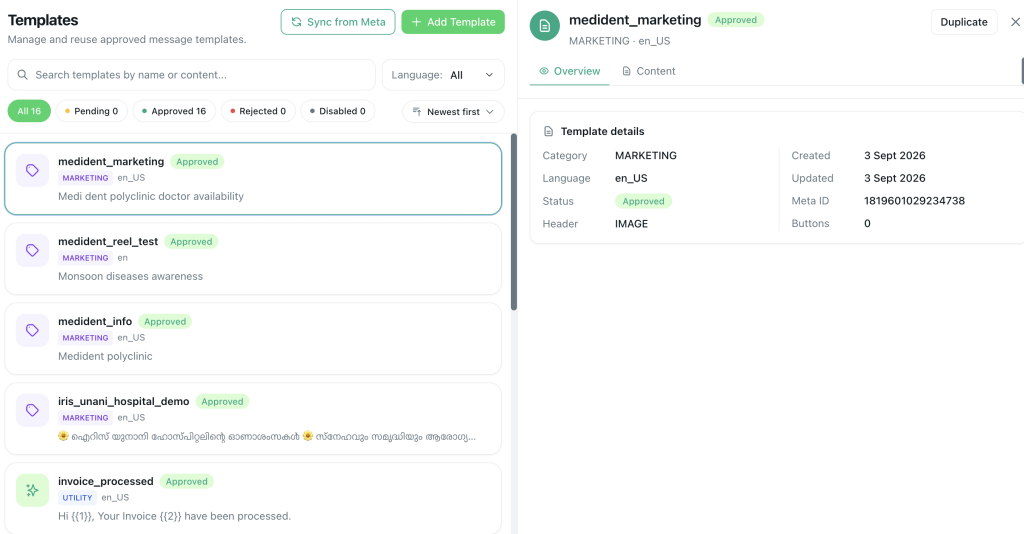
- Open Templates (
/templates) from the sidebar (or More → Templates). - Create a new template: name, language, category, header/body/footer/buttons.
- Add variables only where personalisation is required.
- Preview the bubble as a customer would see it on mobile.
- Submit to Meta. Status becomes Pending.
- Watch for Approved or Rejected. Pyngdesk can reflect status updates when your WhatsApp webhook includes
message_template_status_update. - Sync existing WABA templates if you already created some in Meta Business Suite — keep one source of truth.
Pro tip: Submit a utility template first on a new WABA. A clean approval builds confidence before marketing creatives.
Common rejection reasons and fixes
| Rejection pattern | Fix |
|---|---|
| Category mismatch | Recreate under the correct category |
| Vague or incomplete body | Add who you are, why you are writing, and next step |
| Too many variables / abuse risk | Reduce open-ended placeholders |
| Misleading claims | Soften copy; remove fake urgency |
| Policy-sensitive content | Avoid prohibited verticals and claims per Meta commerce/messaging policies |
| Duplicate / spammy naming | Use clear unique names (order_shipped_v1, not promo1…promo99) |
When rejected, do not resubmit the identical text hoping for a different reviewer. Change category or rewrite.
Speed tactics that actually work
- Batch thoughtfully — Prepare 3–5 solid templates, not 30 near-clones.
- Localise properly — Separate language versions instead of mixing Hindi/English poorly in one body.
- Reuse structures — Once a utility pattern is approved, clone the structure for similar events (shipped / delivered).
- Keep marketing modest at first — Short offer, clear opt-out cue, no gimmicks.
- Align website/checkout consent language with what the template claims customers agreed to.
- Monitor quality rating on WhatsApp setup (
/whatsapp/onboarding) before heavy marketing sends — Yellow/Red is not the time to push aggressive promos.
Approval time varies. You cannot force Meta’s queue — you can only submit clean, category-correct templates so you are not stuck in reject-resubmit loops.
After approval: use templates safely
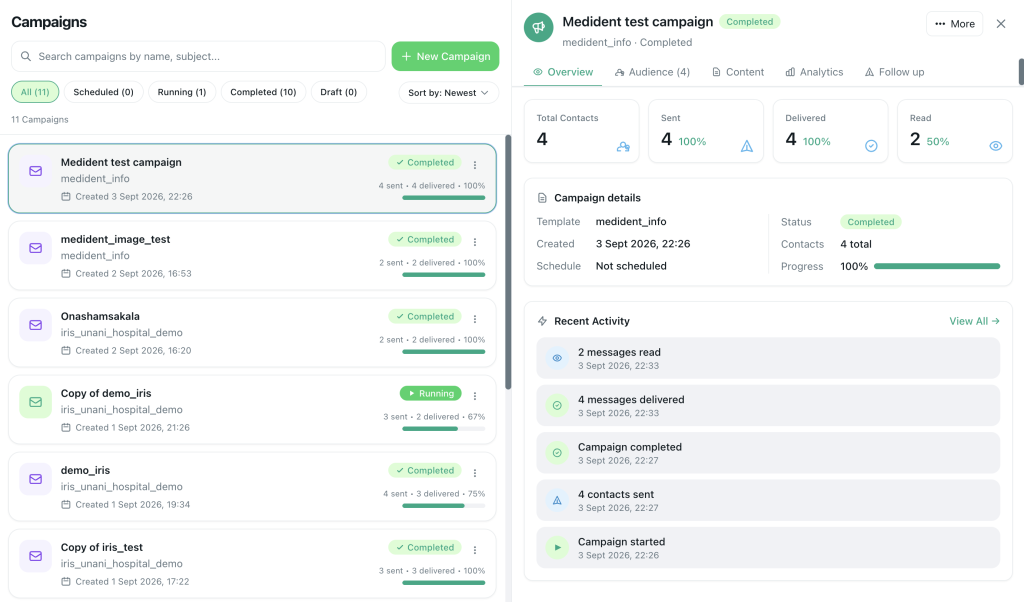
Approved does not mean “blast everyone.”
In Pyngdesk:
- Use templates in Campaigns with tagged opt-in audiences
- Map variables to contact fields and preview before send
- Prefer Spread over time delivery for first marketing waves
- Honour blocks and STOP replies in Chats and Contacts
A template that is approved but used on a bad list still damages quality rating.
Template launch checklist
- Category matches real intent (Utility vs Marketing vs Authentication)
- Business purpose is obvious in the body
- Variables are labelled and previewed with sample data
- Media header is clear and relevant (if used)
- No ALL CAPS, prize bait, or deceptive urgency
- Submitted from Pyngdesk Templates; status tracked to Approved
- Audience and opt-in plan ready before first campaign send
Frequently Asked Questions
How long does Meta take to approve templates?
It can be minutes to a few days. Clean utility templates often move faster than borderline marketing copy.
Can I edit an approved template?
Structural edits usually require a new template or Meta’s edit rules for that template. Plan versioning (_v2) instead of endless silent tweaks.
Why is my template Pending for a long time?
Check Meta Business Suite for account issues, and ensure webhooks/status sync are healthy. Resubmitting duplicates rarely helps.
Does Pyngdesk guarantee approval?
No tool can. Pyngdesk helps you author, submit, sync, and use only approved templates in campaigns — reducing operational mistakes.

Leave a Reply
You must be logged in to post a comment.