
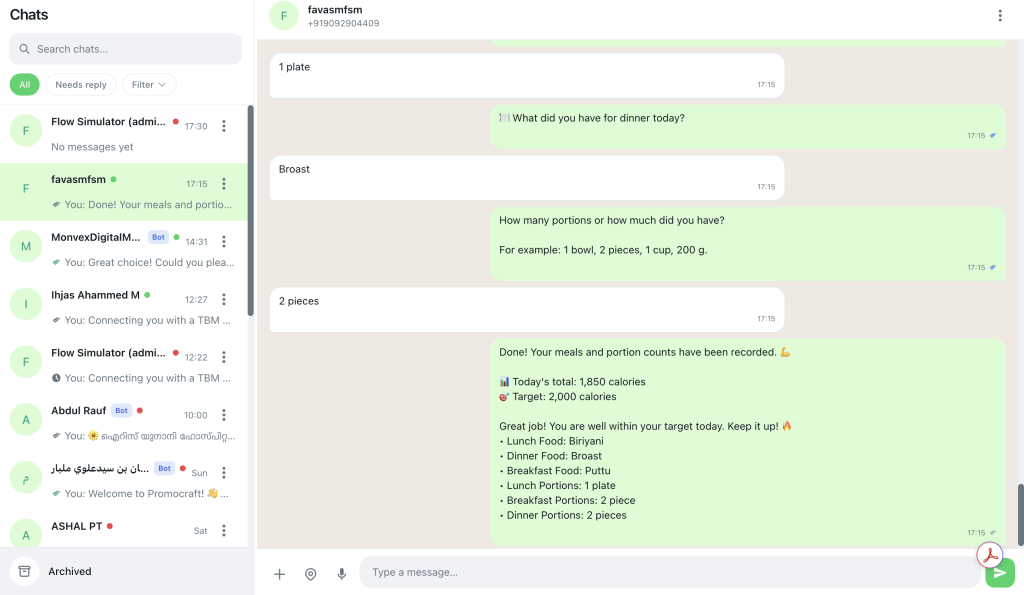
The fastest way to ruin a WhatsApp channel is to treat every phone number as equal.
Broadcasts work when the message matches who the person is, what they opted into, and when they last engaged. Segmentation is how you do that — and it is the difference between helpful updates and a wave of blocks.
This guide covers practical WhatsApp audience segmentation and how to build those audiences in Pyngdesk campaigns.
Why “send to everyone” fails on WhatsApp
Email tolerates mediocre targeting more than WhatsApp does. On WhatsApp, irrelevant messages drive:
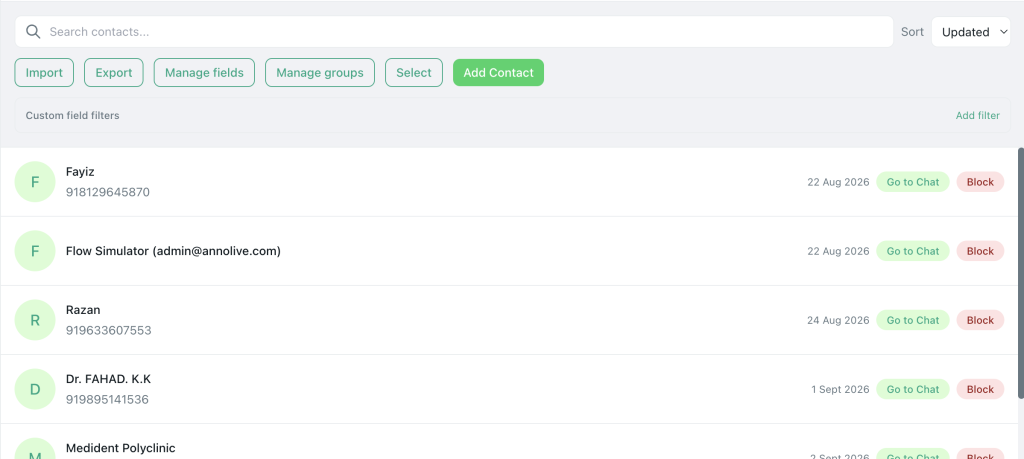
- User blocks and reports
- Opt-out replies (“STOP”)
- Falling quality rating
- Lower messaging limits over time
Meta optimises for user experience. Your job is to message smaller, better lists.
The three layers of a good WhatsApp audience
1. Consent layer (non-negotiable)
Only include people who opted in for this type of message.
Examples of tags:
promo-opt-inreorder-reminders-okevent-updates
Someone who shared a number for delivery updates did not automatically consent to weekly deals. Keep utility and marketing audiences separate.
2. Fit layer (relevance)
Filter by attributes that make the offer make sense:
- City / service area
- Product interest (
frames,shoes,saas-trial) - Customer stage (
lead,active,lapsed) - Language preference
3. Hygiene layer (deliverability)
Exclude:
- Blocked contacts
- Invalid / failed numbers from prior campaigns
- Very recent recipients of a similar blast (fatigue)
- Internal test numbers mixed into production lists
Pyngdesk excludes blocked contacts from campaign audiences automatically when you mark them blocked in Contacts.
Segmentation building blocks in Pyngdesk
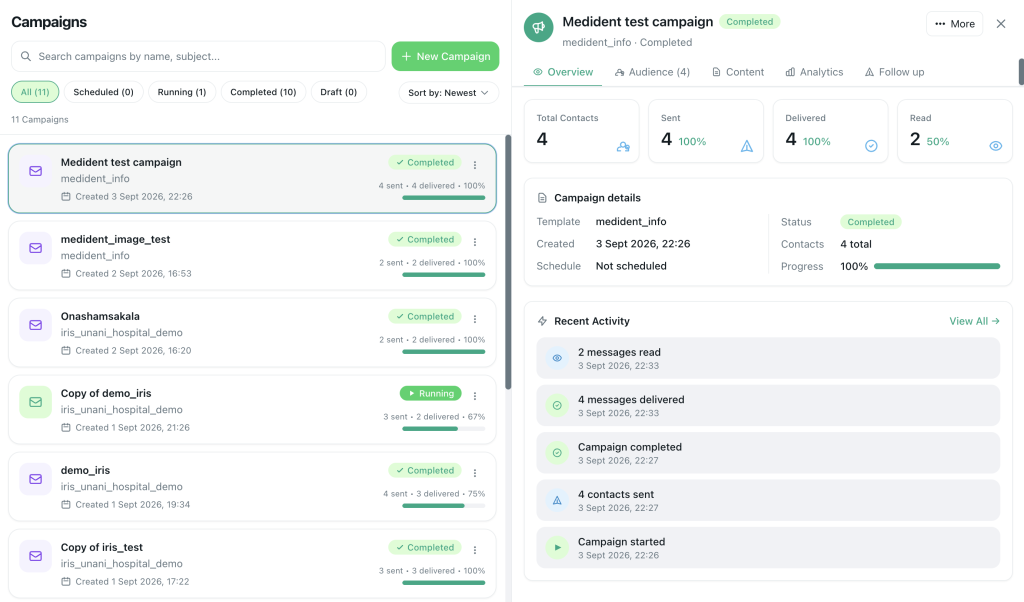
Open Contacts (/contacts) and Campaigns (/campaigns).
| Tool | Use for |
|---|---|
| Tags | Consent and interest labels (promo-opt-in, vip) |
| Contact groups | Saved lists (event attendees, wholesale buyers) |
| Custom field filters | Plan type, last purchase date, city, etc. |
| Manual selection | Tiny VIP sends or tests |
| Datasets | Structured lists you maintain under Datasets (/datasets) when working with bulk tabular audiences |
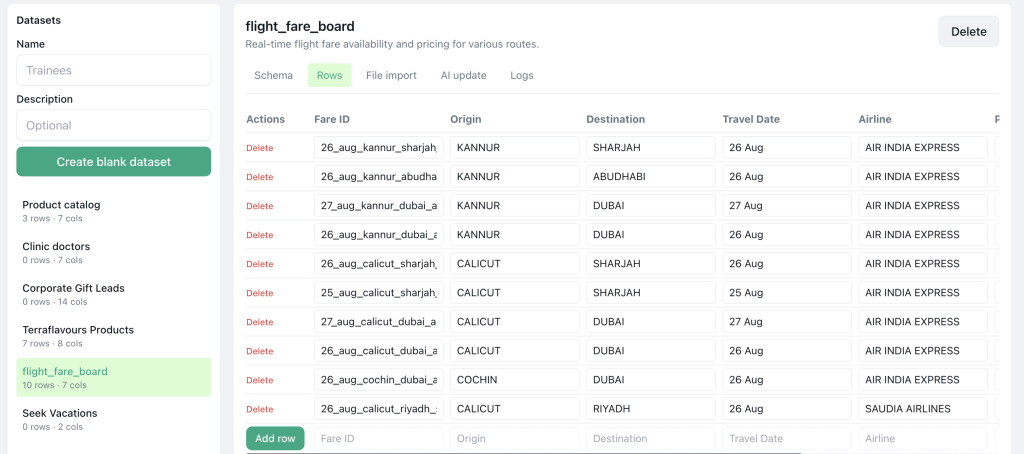
In Campaigns → New Campaign, combine filters and watch the live recipient count. If it is 0, fix filters before you schedule.
Practical segment recipes
Recipe A — First marketing campaign (safe)
- Tag:
promo-opt-in - Exclude: blocked
- Cap: under 500 if the WABA is new
- Template: soft offer, clear identity
Recipe B — Win-back
- Tags:
customer+ notpurchased-90d(or custom field) - Exclude anyone messaged with a win-back in the last 30 days
- Template: helpful reminder, not guilt spam
Recipe C — Utility only
- Tag:
orders-openor filter on open order field - Template category: Utility
- Goal: updates customers expect (shipping, appointment)
Recipe D — Local retail
- Filter: city = your service town
- Tag:
walk-in-opt-inor QR opt-in - Message: stock, hours, festive hours — highly local
Recipe E — VIP
- Tag:
vipor group “Wholesale” - Manual review of count under 100
- Personal tone; optional human follow-up in Chats
How to tag without creating chaos
Tag sprawl kills segmentation. Rules of thumb:
- Consent tags are sacred — never reuse
promo-opt-infor “we think they might like promos.” - Prefer a small controlled vocabulary — document tags in a shared note for the team.
- Apply tags at capture time — website form, checkout, QR, or first inbound chat.
- Review monthly — merge duplicates (
promovspromo-opt-in).
When a user asks to stop marketing, block or remove marketing tags immediately. Keep them for utility only if they still want order updates — and use a utility template, not a marketing one.
Campaign workflow: segment → preview → pace
- Name the campaign with the segment in the title (
April VIP — promo-opt-in). - Select an approved template and map variables.
- Preview on a sample contact.
- Build audience with tags / groups / filters.
- Confirm recipient count.
- Choose Spread over time for larger or newer accounts.
- Monitor sent / delivered / read / failed on the campaign detail view.
- Retarget only non-delivered or non-read buckets when appropriate — do not hammer the full list again.
Metrics that tell you the segment was right
| Signal | Healthy direction |
|---|---|
| Delivery rate | High on clean lists |
| Read rate | Meaningful for your category |
| Replies | Questions and orders, not “Who is this?” |
| Blocks / STOP | Low |
| Failed sends | Investigate spikes (bad numbers, template issues) |
If reads are fine but replies say “wrong city” or “I never signed up,” your fit or consent layer is broken — not your creative.
Segmentation checklist
- Marketing vs utility audiences are separated by tags/filters
- Every marketing recipient has documented opt-in
- Blocked contacts excluded
- Recipient count reviewed before send
- Segment name recorded in the campaign title
- Throttling enabled for first or large sends
- Team ready in Chats for replies
Frequently Asked Questions
How small should a segment be?
As small as needed for relevance. A precise 200-person list often beats a lazy 5,000-person blast.
Can I upload a CSV of numbers and blast?
Only if those numbers include proper WhatsApp opt-in for your use case. Purchased lists are a fast path to restrictions.
Should I segment inside Meta or in Pyngdesk?
Build and maintain segments where your team works daily. Pyngdesk Contacts, tags, groups, and campaign filters are designed for that operational loop.

Leave a Reply
You must be logged in to post a comment.