
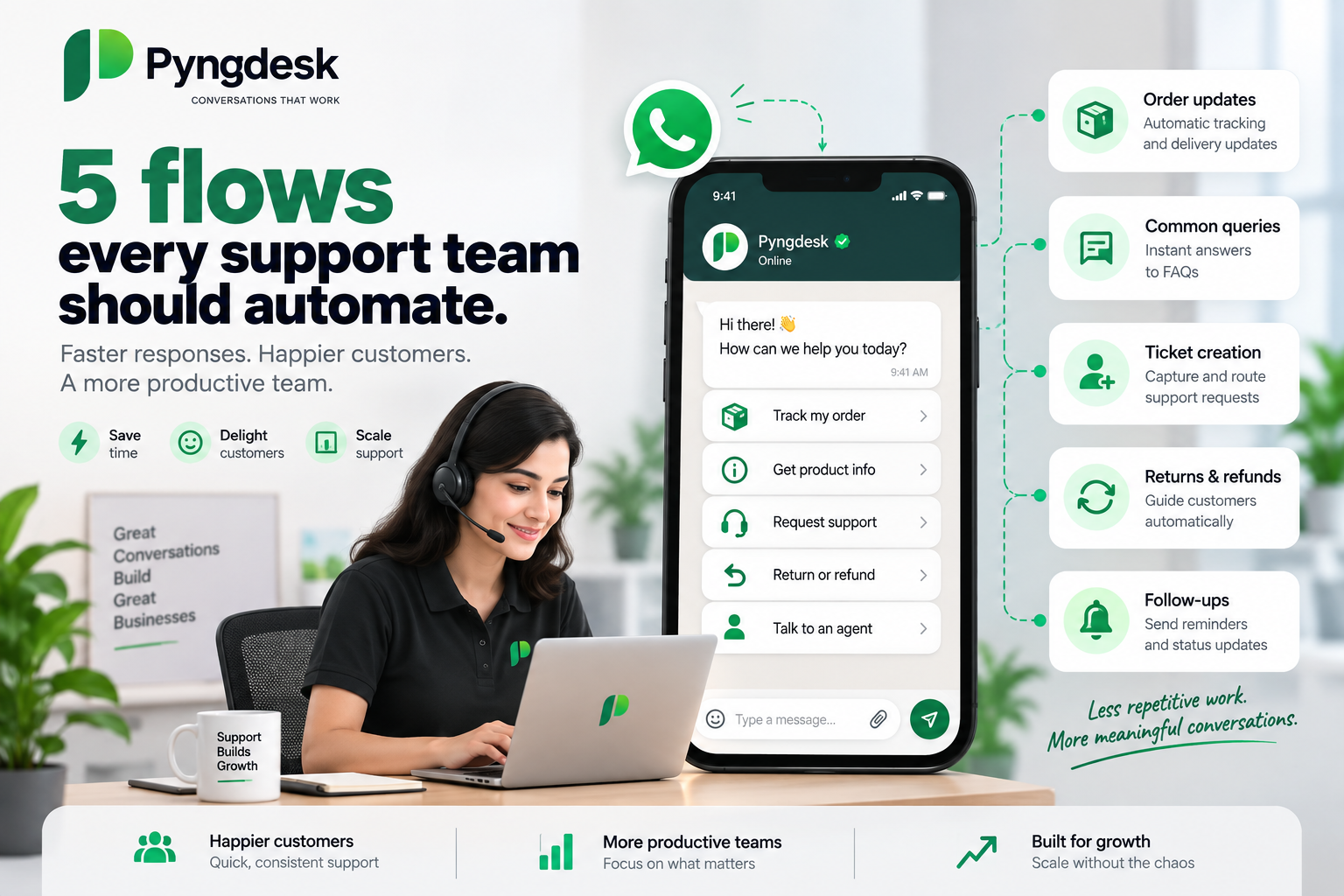
If you run a clinic, travel agency, coaching centre, salon, or any local service business, your support team probably answers the same questions dozens of times a day: What are your hours? How much does it cost? Where are you located? Is my booking confirmed? Can I talk to someone?
Typing those replies manually does not scale. Customers expect instant answers on WhatsApp — and they leave when they have to wait.
The fix is not hiring more people to copy-paste. It is automating the repetitive parts while keeping humans available for the conversations that actually need empathy and judgment.
In Pyngdesk, support automation works in two layers:
- Quick Replies — keyword-triggered FAQ answers (
price,hours,address) that fire instantly without starting a conversation flow. - Flows — visual conversation paths (menus, text capture, media, lookups, handoff) powered by one live flow at a time. When a customer messages and no Quick Reply matches, Pyngdesk auto-starts your active flow — whether they say
hior describe a full enquiry in free text.
This guide covers five flows every service support team should automate — with concrete examples for clinics, travel, and coaching businesses, and exactly how to build them in Pyngdesk.
Why Automate Support on WhatsApp (Not Email or Phone)
WhatsApp is where your customers already are. For service businesses in India and beyond, it is often the first channel people choose after finding you on Google or Instagram.
Compared to email, WhatsApp messages get read quickly and feel personal. Compared to phone IVR (“Press 1 for billing…”), WhatsApp lets customers reply in their own words and get structured menus when they prefer tapping buttons.
For inbound support, the WhatsApp Business API gives you:
- Instant self-service for FAQs — hours, pricing, location, brochures
- Structured intake before an agent joins — service type, preferred date, notes
- A clear handoff when automation should stop — with full context attached to the chat
- Proactive follow-ups via approved templates when you need to reach out after the 24-hour window (see our guide on running your first WhatsApp campaign safely)
The goal is not to replace your team. It is to stop them from answering “We’re open 9–7” for the hundredth time this week.
How Pyngdesk Automation Works (Quick Primer)
Before diving into the five flows, here is how inbound messages are handled:
| Layer | What it does |
|---|---|
| Quick Replies | Exact keyword match on the whole message (price, hours, brochure) → instant canned answer; no flow session |
| Live flow | One active flow per org. Any other inbound text (e.g. hi, “I want to book for June”) auto-starts it at the first node |
| Menus | Button nodes (up to 3 options) and list nodes (up to 10) inside a flow |
| Data capture | Text nodes with save_as fields (name, date, notes) |
| Rich answers | Image, document, audio, and location nodes |
| Lookup | dataset_lookup / dataset_list against uploaded CSV datasets |
| Multi-choice | multi_select for “pick all services you need” |
| Wait & nudge | Delay node — send a follow-up after X minutes unless they reply |
| Escape hatch | End node marked as handoff → routes chat to your agent queue |
| Smarter routing | AI-enabled flows (Gemini) for messy free text inside an active session |
| Agent inbox | Chats flagged needs_agent with attention alerts |
Important: Keywords belong in Quick Replies, not on flows. Greetings like hi and hello are reserved for starting the live flow — do not add them as Quick Reply keywords.
Flow 1: Welcome & Issue Routing
A customer messages “Hi” at 10 AM. Without automation, someone on your team has to notice the chat, open it, and type “How can I help you?” — often minutes later. With a routing flow set as your live flow, the customer immediately gets a clear menu of what you can help with.
How it starts
What it solves
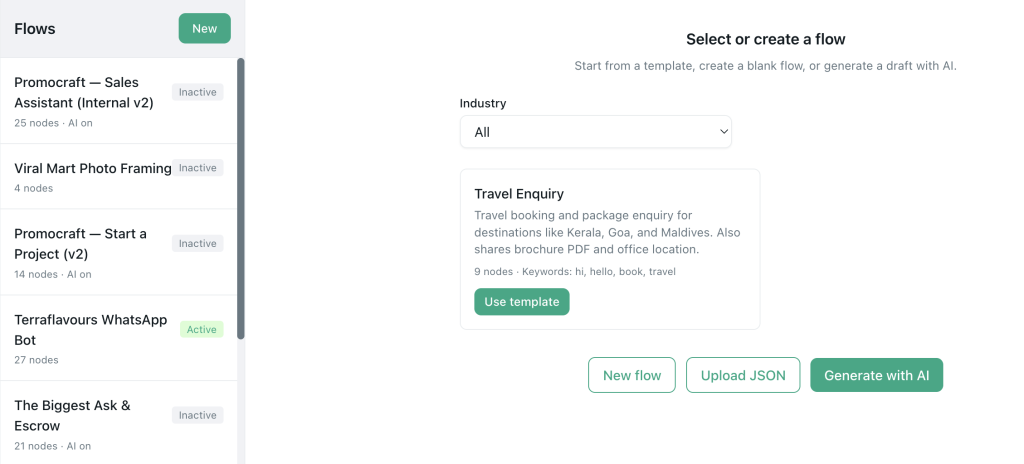
Activate this flow as your org’s live flow (is_active). Then any inbound message that does not match a Quick Reply keyword starts the flow automatically — including:
- “Hi” / “Hello”
- “I need help”
- “I want to book a Kerala trip in December”
You do not configure trigger words on the flow itself. Keywords are only for Quick Replies (Flow 2).
Recommended node path
- Set this flow as Active (live) in Flows → Overview
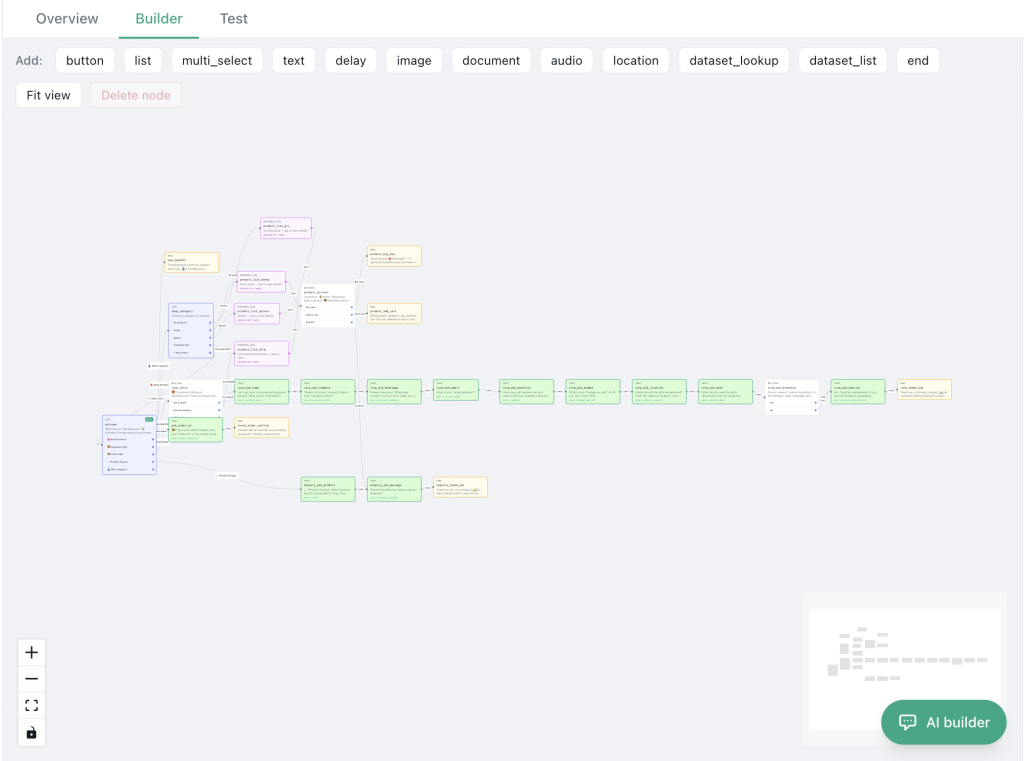
- Start node:list or button — “What can we help you with today?”
- Book appointment / enquiry
- Pricing & packages (or branch to a document node; FAQ keywords like
priceare handled by Quick Replies when sent alone) - Office location
- Talk to support
- Branch each option to the right sub-path, rich-media node, or handoff end node
What the customer sees
A WhatsApp list or button message with tappable options — no typing required unless they choose a free-text path.
What the team gains
Fewer “Hi… waits …Hi again?” exchanges. Agents only join when the customer picks “Talk to support” or reaches a handoff node.
Service-business examples
| Business | Menu options |
|---|---|
| Clinic | New patient · Follow-up · Billing · Speak to reception |
| Travel | Domestic trips · International · Custom itinerary · Agent callback |
| Coaching | Demo class · Fees & batches · Syllabus · Speak to counsellor |
Pro tip
Use a list node when you have more than three options (up to 10). Reserve button nodes for your top three highest-volume intents. Start the Travel Enquiry template in Pyngdesk as a reference — activate it as your live flow; it already demonstrates welcome → destination → brochure → location branching.
Flow 2: Hours, Pricing & Location (FAQ Layer)
What it solves
A large share of inbound chats ask the same four facts: opening hours, price list, office address, and “send me your brochure.” These do not need a human — but they do need accurate, consistent answers.
Example customer messages (Quick Reply keywords)
Quick Replies use exact match on the whole message (case-insensitive). The customer must send essentially one keyword or short phrase:
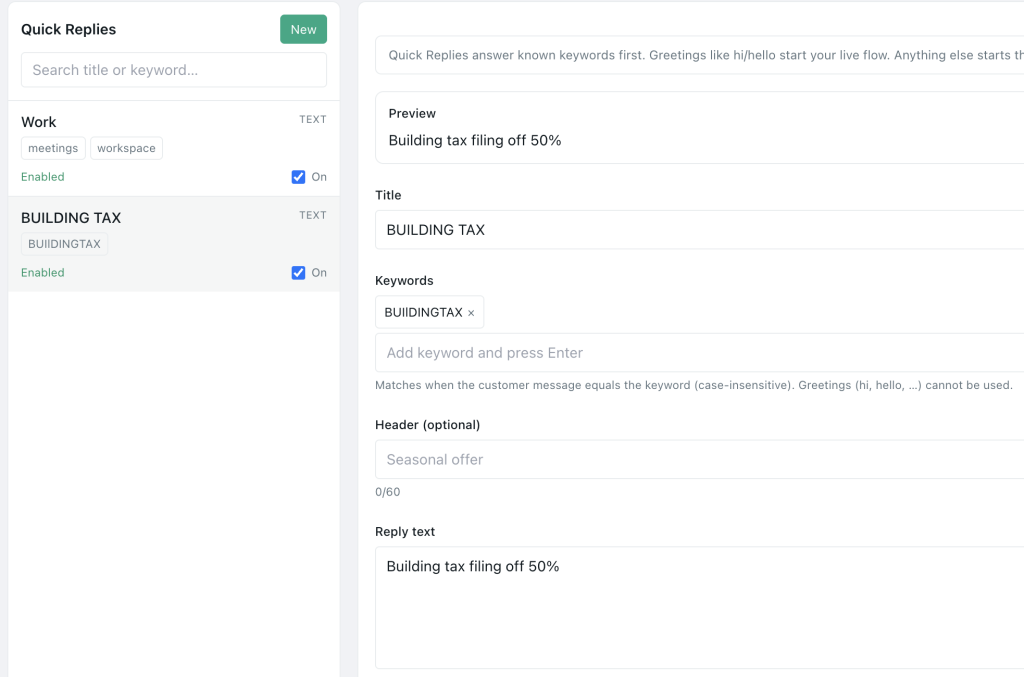
hoursortimings→ office hours replypriceorhow much→ pricing replyaddressorlocation→ address replybrochureorpdf→ document reply
Do not use greetings (hi, hello) as Quick Reply keywords — those should start your live flow (Flow 1).
Recommended build — two layers
Layer 1: Quick Replies (fastest win)
In Quick Replies, create keyword-triggered responses:
| Quick Reply | Keywords | Response |
|---|---|---|
| Office / support hours | hours, timings, open, when are you open | Mon–Sat 9:30 AM – 7:00 PM IST… |
| Pricing overview | price, cost, fees, how much | Your standard rate card (text or PDF) |
| Office address | address, location, where are you | Short address + “Reply location for map pin” |
| Company brochure | brochure, pdf, catalogue | Document attachment with a one-line caption |
Quick Replies run before the live flow: if price matches, the customer gets the rate card and no flow session starts. They work on idle chats and, for hours/address only, can be allowed during agent handoff via allow_during_handoff.
Layer 2: Flow nodes for richer answers
- location node — map pin with name and full address for “Where are you?”
- document node — fee structure PDF or course catalogue
- image node — clinic reception, campus, or tour photos with caption
Wire the “Office location” branch from Flow 1 to a location node, and “Pricing” to a document or text summary node.
What the customer sees
Instant answers — text, PDF, image, or a tappable map pin — without waiting in a queue.
What the team gains
Your agents stop being a human FAQ page. Set quick-reply priority so pricing and hours beat generic fallbacks.
Pro tip
Enable allow_during_handoff only for harmless facts (hours, address) so customers can still get basics while waiting for an agent. Do not auto-reply with marketing promos during handoff — it feels tone-deaf.
Flow 3: Structured Enquiry / Appointment Intake
What it solves
When a customer wants to book a consultation, trip, or demo class, agents waste time asking “Which service? What date? What’s your name?” in a back-and-forth that could have been collected upfront.
How customers reach this path
- They message freely (“I want to book an appointment”) → live flow starts → they pick Book appointment from the welcome menu, or
- They are already in an active flow session and selected Book appointment from Flow 1’s list
Recommended node path
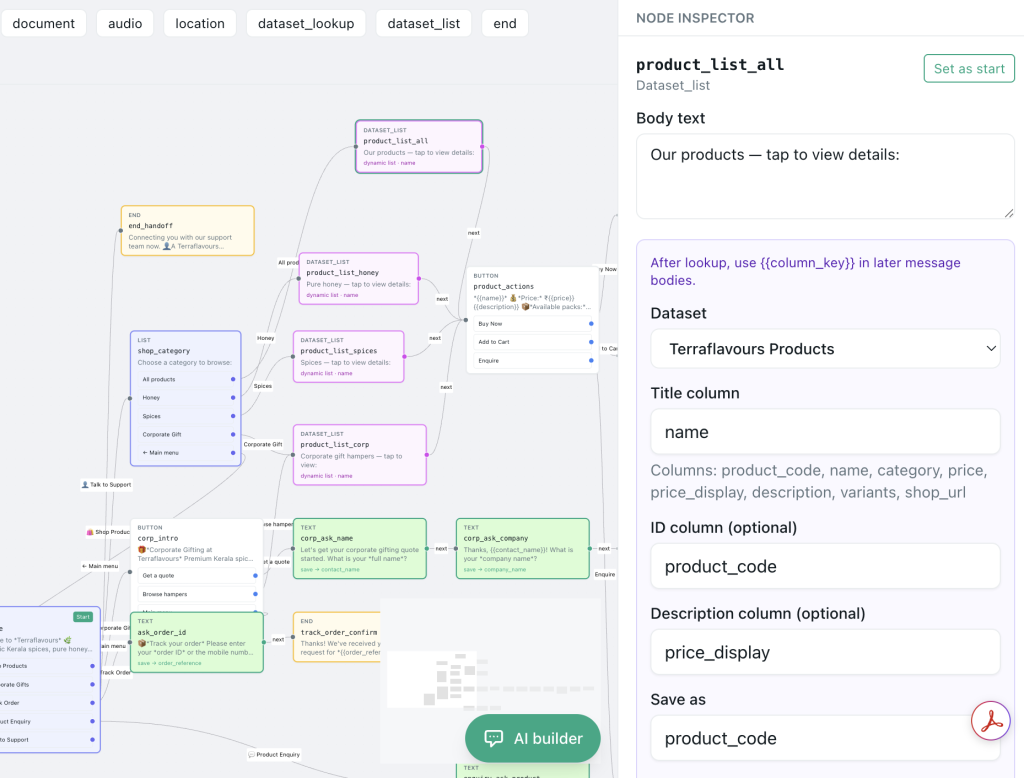
- List or multi_select — “Which service are you interested in?”
- Clinic: cleaning, root canal, whitening, consultation
- Travel: Kerala, Goa, Maldives, custom
- Coaching: Grade 10 batch, Grade 12 batch, crash course
- Text node —
save_as: preferred_date— “What date works for you?” - Text node —
save_as: customer_name— “May we have your name?” - Text node —
save_as: notes— “Anything else we should know?” (optional) - Delay node (optional) — “Thanks! We’ll confirm within 2 hours.” with
cancel_on_replyso a follow-up message sends only if they go quiet - End node — summary: “We received your enquiry for {{service}} on {{preferred_date}}. We’ll call you shortly.”
If the enquiry needs a human, branch to Flow 5’s handoff end instead of a plain end.
What the customer sees
A guided conversation — one question at a time — that feels like a receptionist, not a form.
What the team gains
When an agent opens the chat, session answers already show service, date, and name. No re-asking.
Pro tip
Use multi_select when customers commonly need more than one service (e.g. “teeth cleaning + whitening”). For single-choice menus, a list node is simpler. Model your flow on Pyngdesk’s Travel Enquiry template: destination → dates → budget → handoff.
Flow 4: Booking or Reference Status Lookup
What it solves
“Is my appointment confirmed?” and “What’s my booking status?” are high-volume, low-complexity questions — if you have structured data. Agents should not look up the same spreadsheet fifty times a day.
How customers reach this path
Best wired as a branch inside your live flow (e.g. welcome menu → Check booking status), or reached after the live flow auto-starts and the customer navigates there. Optionally add a dedicated Quick Reply keyword like status if you want a one-word entry that skips the welcome menu.
Recommended node path
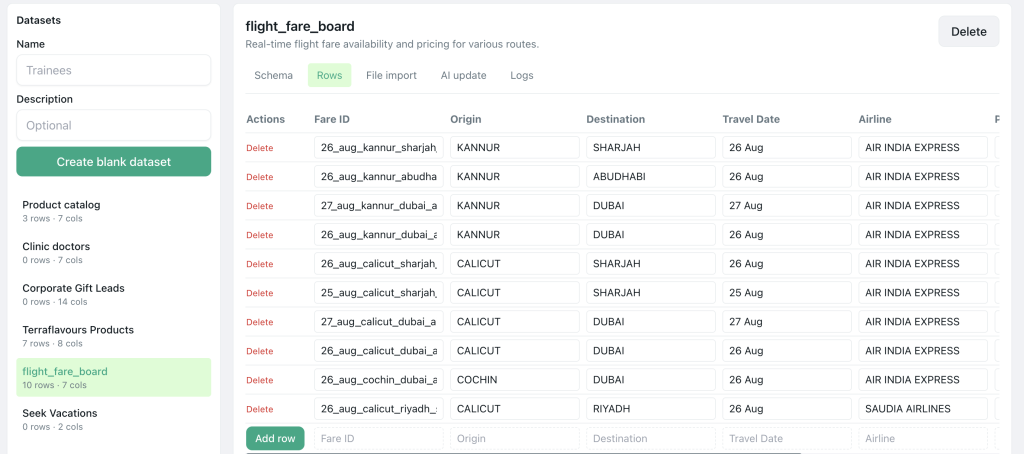
- Upload a Dataset (CSV) with columns such as:
booking_id,customer_phone,status,appointment_date,service_name
- Text node —
save_as: lookup_ref— “Please share your booking reference or registered mobile number.” - dataset_lookup node — match on
booking_idorcustomer_phoneper yourconfig.matchsetting - Branches:
- Found → text node: “Your {{service_name}} on {{appointment_date}} is {{status}}.”
- Not found → clarify once, then offer handoff: “We couldn’t find that reference. Reply agent to speak with our team.”
What the customer sees
Self-serve status in seconds — no hold music, no “let me check and get back to you.”
What the team gains
Deflection of routine status checks. Agents handle exceptions only.
Service-business examples
| Business | Lookup key | Sample status values |
|---|---|---|
| Travel | Booking reference | Confirmed · Pending payment · Cancelled |
| Clinic | Registered mobile | Scheduled · Completed · Rescheduled |
| Coaching | Enrollment ID | Active · Waitlisted · Payment due |
Pro tip
Keep your dataset fresh — stale data erodes trust faster than no automation. Export from your practice-management or booking tool weekly, or after every batch of confirmations. Test with three known records in the flow simulator before going live.
Flow 5: Smart Handoff to a Human (With Context)
What it solves
Automation should know when to stop. Customers who are upset, confused, or explicitly ask for a person should reach a human quickly — with everything the bot already collected attached to the chat.
When handoff fires
- Customer picks Talk to support (or similar) from a menu inside the live flow
- Customer fails clarification 3 times (Pyngdesk’s default
clarify_max_attempts) while in an active session - AI detects high-stakes intent: refund, complaint, cancellation (when AI is enabled on the flow)
Note: while a chat is handed off to an agent, new messages do not start the live flow again. Only Quick Replies with allow_during_handoff (e.g. hours) may still auto-respond.
Recommended node path
- Button or list option — “Talk to agent” → routes to handoff end node
- End node — mark as handoff (
is_handoff: truein node config, or key likeend_handoff) - Engine calls
handoff_session— chat status becomesneeds_agent - Agent sees the chat in Chats with attention alert; session answers from Flow 3 are visible
Optional enhancements:
- write_dataset_log on the flow — append every completed intake to a dataset for reporting (“47 enquiries this week, 12 handed off”)
- AI instructions on the flow: “Hand off immediately for refunds, complaints, and medical emergencies.”
What the customer sees
“Connecting you with our team now. An agent will reply shortly.” — then a real person who already knows their name, service, and date.
What the team gains
No cold handoffs. Faster resolution. Clear queue (needs_agent) so nothing slips through during busy hours.
Pro tip
Pair handoff with Flow 2’s hours quick reply: outside business hours, the handoff end message should set expectations — “Our team is offline until 9:30 AM. We’ve noted your request and will reply first thing.”
Which Flow Should You Build First?
Not every team needs all five on day one. Use this rollout order:
| Order | Flow | Effort | Impact |
|---|---|---|---|
| 1 | FAQ Quick Replies (Flow 2) | Low | High — immediate deflection |
| 2 | Welcome & routing (Flow 1) | Medium | High — structures every new chat |
| 3 | Enquiry intake (Flow 3) | Medium | High — better agent productivity |
| 4 | Handoff with context (Flow 5) | Low | Critical — safety net for all flows |
| 5 | Dataset lookup (Flow 4) | Medium–High | Medium — needs clean booking data |
Ship Quick Replies this afternoon. Add routing by end of week. Layer intake and handoff before you upload your first dataset.
Common Mistakes to Avoid
- Putting
hiin Quick Replies — Greetings should start your live flow, not bypass it with a canned reply. - No handoff path — Every flow needs a way to reach a human. Customers who feel trapped report spam or block you.
- Too many questions upfront — Collect three fields, not ten. Answer something useful before asking for more.
- No after-hours messaging — Pair Flow 1 with a hours Quick Reply or a time-aware welcome message so midnight enquiries get a response.
- Stale datasets — A lookup that says “Confirmed” when the appointment was cancelled is worse than no lookup.
- Ignoring the
needs_agentqueue — Handoff without agent response trains customers to stop using WhatsApp. Monitor Chats and set internal SLAs. - Automating complaints — Route refunds, disputes, and sensitive issues to humans via AI instructions or a dedicated “Billing issue” → handoff branch.
Getting Started in Pyngdesk
- Add Quick Replies first for your top FAQ keywords (
price,hours,address,brochure) from last month’s chat history. - Open Flows and start from a template (e.g. Travel Enquiry) or use the AI flow builder to describe your business in plain English.
- Test with the built-in simulator, then activate exactly one flow as your live flow.
- Open Chats and watch handoff volume for the first week. Tune
clarify_max_attemptsand menu labels based on what customers actually tap.
If you already use the WhatsApp Business app on the same number, Pyngdesk supports coexistence onboarding — your team can keep the mobile app while API flows handle automation. See the project README for webhook subscription details.
FAQ:
No. Pyngdesk provides a visual flow builder, node inspector, and simulator. If you can map a conversation on a whiteboard, you can build a flow.
Yes. Flows handle inbound conversations; campaigns handle outbound broadcasts. They complement each other.
Quick Replies only. Flows do not use entry keywords. One live flow auto-starts on any inbound text that does not match a Quick Reply. Keep greetings off your Quick Reply keyword list so hi opens the welcome menu instead of a static reply.
While inside an active flow session, Pyngdesk re-prompts with clarify messages (configurable). With AI enabled, free text can map to the right option. After max clarify attempts, the flow hands off to an agent.
Only if you write robotic copy. Use your brand voice, keep messages short, and hand off when it matters. Customers prefer instant menus over waiting for a human to say hello.
Especially. A two-person clinic or a solo travel agent benefits most — you cannot be on WhatsApp 24/7, but flows can be.

Leave a Reply
You must be logged in to post a comment.