Introduction
Sending your first WhatsApp campaign is exciting — and risky if you treat it like email blast software.
WhatsApp is not a cold-outreach channel. Meta actively monitors quality signals: user reports, blocks, opt-outs, and how recipients respond to your messages. A careless first campaign can throttle delivery, restrict your number, or pause your WhatsApp Business Account (WABA) entirely.
The good news: if you follow WhatsApp’s rules and use the right tooling, your first campaign can be safe, measurable, and effective. This guide walks you through exactly how to do that — including how to set up campaigns in Pyngdesk, a WhatsApp Business API platform built for teams that want compliance and control baked in.
Step 1: Connect Your WhatsApp Business Account Properly
Before you send anything, connect a real WhatsApp Business Account through official channels — not a personal WhatsApp number hacked into a bulk sender.
In Pyngdesk:
1. Go to Settings → WhatsApp (or complete onboarding after signup).
2. Confirm your display phone number, verified business name, and especially your quality rating (Green is healthy; Yellow or Red means slow down and fix content before scaling).
If your number is still active on the regular WhatsApp or WhatsApp Business app, disconnect it first and wait a few minutes before registering on the API — otherwise setup will fail.
Pro tip: Start with a number that already has some legitimate customer conversations. Brand-new numbers with zero history and instant bulk sends look suspicious to Meta.
Step 2: Build Opt-In Before You Build a List
WhatsApp requires prior explicit consent before marketing messages. That means:
- Customers checked a box on your website (“Send me offers on WhatsApp”)
- They messaged you first and you confirmed they want updates
- They gave their number at checkout with clear WhatsApp communication consent
- They scanned a QR code or clicked a “Chat on WhatsApp” link with stated purpose.
Do not: - Buy phone number lists
- Upload contacts from a spreadsheet with no consent proof
- Message people who only gave their number for delivery updates with unrelated promos
In Pyngdesk, import contacts via Contacts and use tags and contact groups to segment people who opted in to specific topics (e.g. promo-opt-in, loyalty-member).
If someone asks to stop, block them in Pyngdesk immediately (Contacts → mark as blocked). Blocked contacts are automatically excluded from campaign audiences.
Step 3: Create and Get a Template Approved
Outbound campaigns outside the 24-hour reply window must use Meta-approved message templates. Free-form promotional text sent cold will fail — and repeated attempts can trigger restrictions.
In Pyngdesk:
Open Templates from the sidebar (or More → Templates).
Create a template with a clear category (Marketing, Utility, or Authentication).
Write honest, specific copy — no misleading claims, no “You won a prize” bait.
Submit for Meta approval. Status will show as Pending, Approved, or Rejected.
Only approved templates appear in the campaign builder.
Template best practices for first campaigns:
| Do | Don’t |
|---|---|
| Use the customer’s name via variables | Use ALL CAPS or excessive emojis |
| State who you are and why they’re hearing from you | Hide your brand identity |
| Include a clear value (offer, reminder, update) | Send vague “Hi, check this out” messages |
| Match template category to actual content | Label marketing as “utility” to sneak past review |
If your template has a media header (image, video, or document), upload high-quality, relevant assets. Blurry stock photos and clickbait images increase report rates.
Step 4: Define a Small, Relevant Audience
Your first campaign should not go to your entire database. Start with your most engaged, clearly opted-in segment.
In Pyngdesk’s Campaigns → New Campaign flow:
- Name the campaign clearly (e.g. “March loyalty offer — VIP tag”).
- Select an approved template and map template variables to contact fields (name, city, last order, etc.).
- Preview the message — read it as a customer would on a phone.
- Choose your audience using one or more of:
- Tags (e.g. everyone tagged
promo-opt-in) - Contact groups
- Custom field filters (plan type, last purchase date, city)
- Manual selection from the contact list
- Tags (e.g. everyone tagged
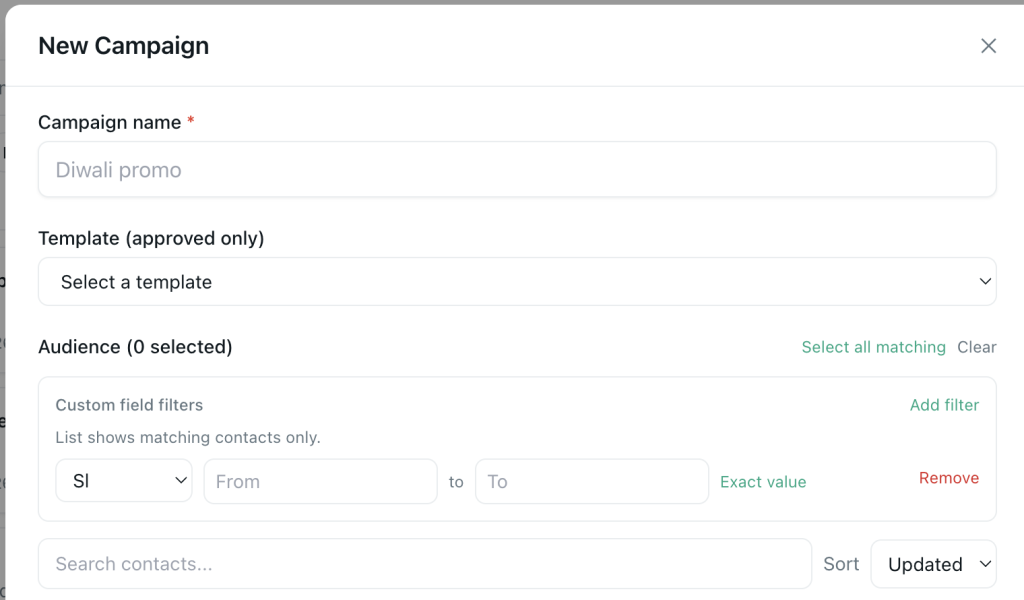
Pyngdesk shows a live recipient count and excludes blocked contacts automatically. If the count is 0, fix your filters before proceeding.
First campaign sizing guide:
- Under 500 contacts if your WABA is new or quality rating isn’t Green
- 500–2,000 once you’ve seen strong delivery and low blocks on a test batch
- Scale gradually — doubling volume week over week is safer than 10× overnight.
Step 5: Choose Safe Delivery Settings
This is where most first-time senders get into trouble: blasting thousands of messages in minutes from a fresh account.
Pyngdesk offers two delivery modes:
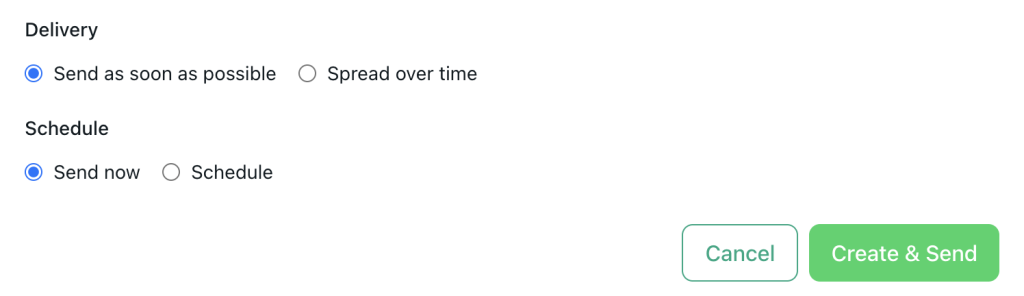
Send as soon as possible
Messages go out immediately, staggered by about one second between recipients. Fine for small, warm audiences.
Spread over time (recommended for first campaigns)
Throttle delivery with:
- Max messages per day (start with 100–300 for new accounts)
- Sending window (e.g. 10:00 AM – 6:00 PM in your timezone)
- Weekdays (avoid Sunday night blasts unless your audience expects it)
The UI estimates how many calendar days your campaign will take based on audience size and limits. A 1,000-person list at 200/day across weekdays might run ~5 business days — and that’s a feature, not a bug.
Also choose Schedule:
- Send now for a controlled test batch
- Schedule for Tuesday morning when your audience is active (not midnight)
Step 6: Launch, Monitor, and Learn
After you hit Create & Send or Schedule Campaign, watch the campaign detail view:
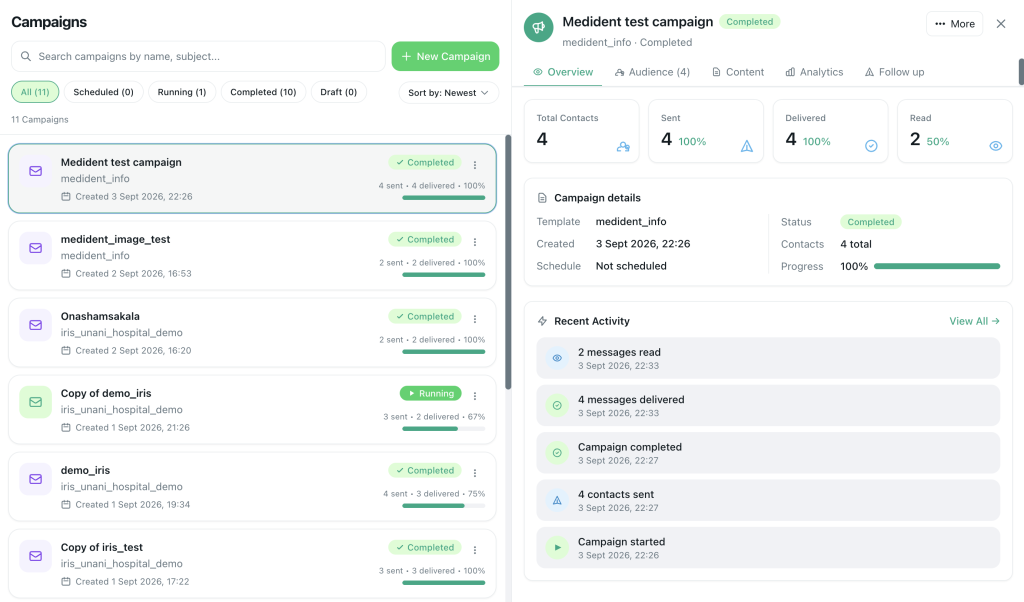
- Sent — Meta accepted the message
- Delivered — Reached the device
- Read — Recipient opened it
- Failed — Invalid number, template issue, or restriction
Healthy first campaigns typically show:
- Delivery rate above 90% on a clean opt-in list
- Read rate that matches your industry (10–40% for marketing is common)
- Failed rate under 5% (investigate anything higher)
Use retarget buckets in Pyngdesk to follow up only with people who didn’t receive or didn’t read — don’t resend the same blast to everyone.
If failures spike or quality rating drops, pause the campaign, review copy and audience, and fix before resuming.
Step 7: What to Do If Quality Drops
This is where most first-time senders get into trouble: blasting thousands of messages in minutes from a fresh account.
Pyngdesk offers two delivery modes:
Send as soon as possible
Messages go out immediately, staggered by about one second between recipients. Fine for small, warm audiences.
Spread over time (recommended for first campaigns)
Throttle delivery with:
- Max messages per day (start with 100–300 for new accounts)
- Sending window (e.g. 10:00 AM – 6:00 PM in your timezone)
- Weekdays (avoid Sunday night blasts unless your audience expects it)
The UI estimates how many calendar days your campaign will take based on audience size and limits. A 1,000-person list at 200/day across weekdays might run ~5 business days — and that’s a feature, not a bug.
Also choose Schedule:
Schedule for Tuesday morning when your audience is active (not midnight)
Send now for a controlled test batch
FAQs
Only to users who messaged you in the last 24 hours. For re-engagement and outreach to opted-in lists, you need approved templates.
Meta sets tier limits based on your number’s history and quality. Start with hundreds per day, not tens of thousands. Pyngdesk’s throttling helps you stay within safe pacing regardless of your tier.
No tool can override Meta’s policies. A proper platform helps by enforcing approved templates, excluding blocked contacts, staggering sends, and surfacing delivery analytics — so you catch problems early.
If you’re unsure about list quality, start with a utility template (order update, appointment reminder, account alert). Once engagement is strong, test a small marketing segment.

Leave a Reply
You must be logged in to post a comment.