
If three people know the Meta Business password, you do not have a team — you have a future lockout.
Sharing logins feels faster than setting up seats. It also causes missing 2FA codes, mystery setting changes, ex-staff who still receive OTPs, and zero auditability.
The WhatsApp Business API model is different: the organisation connects the WABA once, then people join your Pyngdesk organisation as admin or staff and work in the product — without owning Meta credentials.
Why password sharing fails
- Security: credentials leak via screenshots, ex-employees, shared password managers without offboarding
- Continuity: one person leaves and takes 2FA device access with them
- Compliance: you cannot show who sent what from a shared phone login
- Scale: freelancers and agencies should never need full Meta control for daily replies
The right model: org-owned channel, seat-based access
| Layer | Who owns it | Purpose |
|---|---|---|
| Meta Business / WABA | Company admins (few) | Asset ownership, billing with Meta, number |
| Pyngdesk organisation | Company admins | Seats, roles, integrations, WhatsApp connection |
| Day-to-day messaging | Staff + admins | Chats, campaigns, flows as permitted |
Connect WhatsApp under WhatsApp setup (/whatsapp/onboarding). Invite humans under Organisation → Members (/organization/members).
Admin vs staff in Pyngdesk
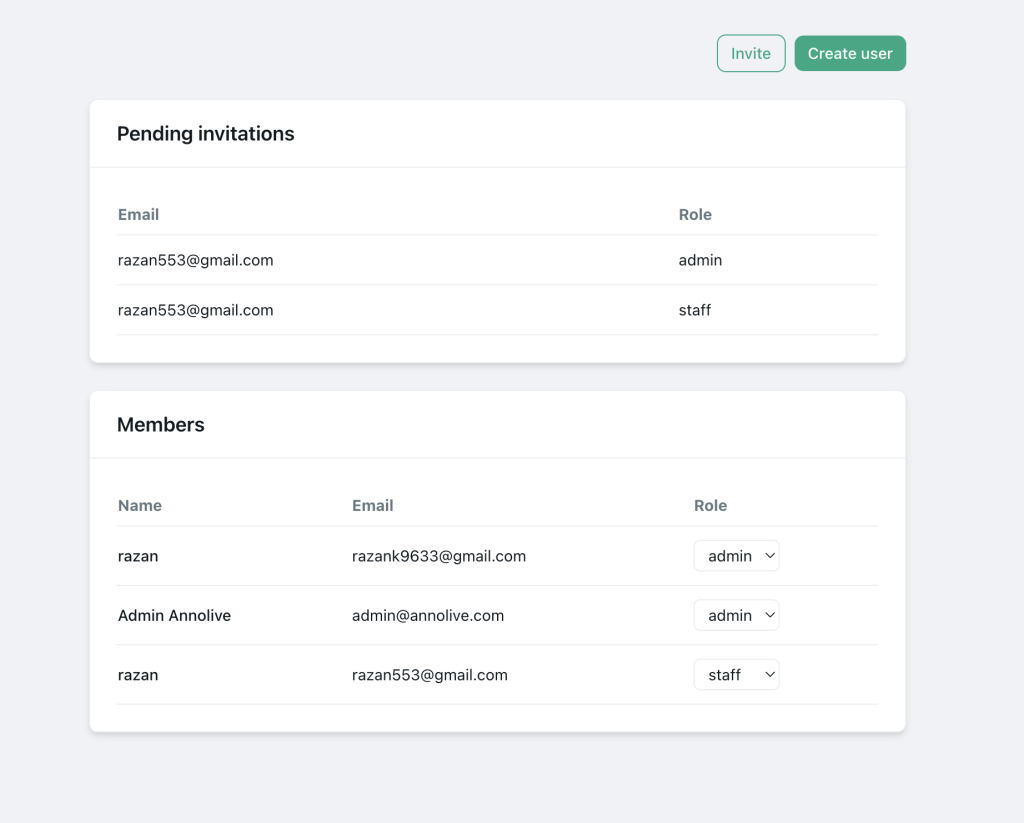
Typical split:
Admin
- Organisation settings
- Members and invites
- WhatsApp setup
- Billing / plan usage
- Full product access
Staff
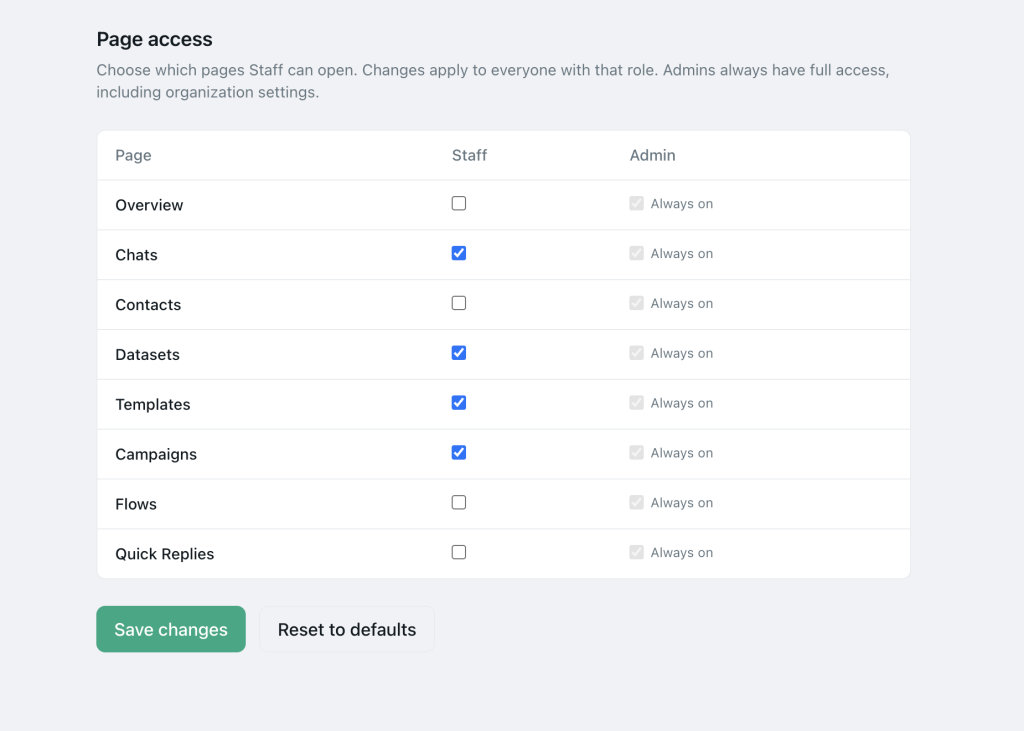
- Chats, contacts, templates, campaigns, datasets, flows, quick replies (per your access settings)
- Not the Organisation admin section
Use Organisation → Access (/organization/access) when you need finer page access control by role.
Step-by-step: invite without sharing Meta
- Owner/admin connects WABA via Embedded Signup on
/whatsapp/onboarding. - Confirm display number and quality rating.
- Go to Organisation → Members.
- Invite teammates by email; choose admin or staff.
- Teammate accepts invite, logs into Pyngdesk, selects the organisation.
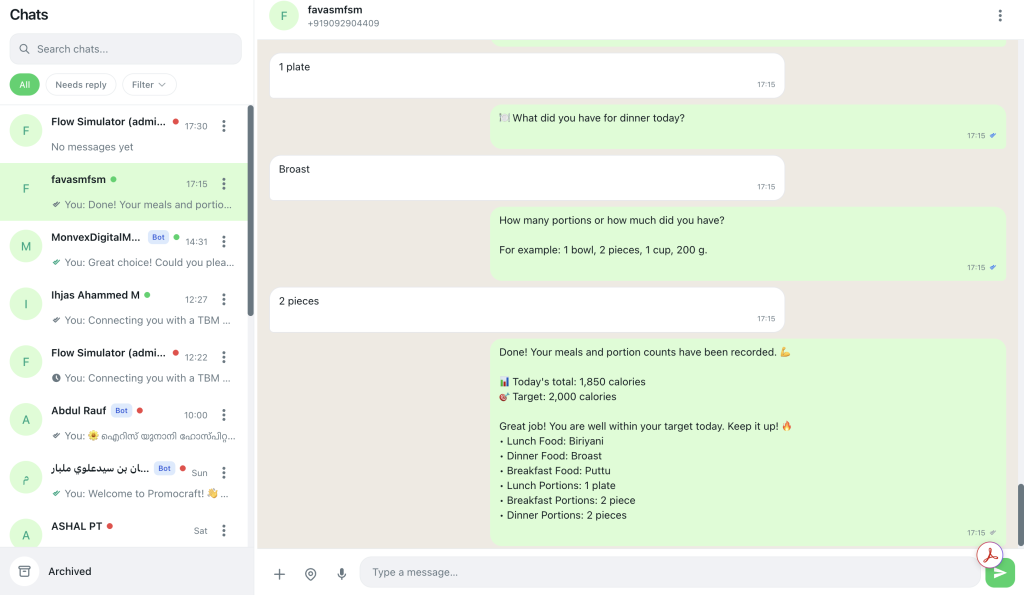
- They open Chats (
/chats) and start working. - Offboard by removing membership — do not “change the shared password” as your only control.
Optional: set organisation profile under Organisation → Settings (/organization/settings) so the brand context is clear.
Agencies and freelancers
For external help:
- Prefer staff seats with least privilege
- Time-box access; remove at project end
- Do not add agencies as Meta full admins unless they truly manage assets
- Keep campaign approval and template strategy with internal admins
Your WABA is a business asset. Treat seats like keys.
What teammates still should not share
Even with Pyngdesk seats, avoid sharing:
- Personal WhatsApp OTPs
- Meta Business login
- Hosting / DNS logins used for verification
- Payment methods on Organisation → Billing (
/organization/billing) beyond finance owners
Onboarding checklist for each new agent
- Pyngdesk login works; correct organisation selected
- Role verified (staff vs admin)
- Knows where Chats, Contacts, Quick Replies live
- Knows STOP / block process
- Does not have Meta password
- Internal escalation path documented
Frequently Asked Questions
Can staff connect or disconnect WhatsApp?
WhatsApp setup is an admin responsibility in the product model — keep it that way.
What if we used password sharing before?
Connect WABA properly in Pyngdesk, invite everyone cleanly, rotate Meta passwords/2FA, and retire shared logins.
Do we need one seat per person?
Yes — that is the point of metering seats on plans. Do not invent shared “team@” logins for agents.

Leave a Reply
You must be logged in to post a comment.